> ## Documentation Index
> Fetch the complete documentation index at: https://docs-staging-update-explain-log-stream-pause.mintlify.site/llms.txt
> Use this file to discover all available pages before exploring further.

> Learn how to configure a progressive profile form using Forms for Actions

# Use Cases: Configure a progressive profile form using Forms

<Card title="Before you start">
  1. Create a [Machine-to-Machine Application](/docs/get-started/auth0-overview/create-applications/machine-to-machine-apps) with the following scopes enabled:

  * `read:users`
  * `update:users`
  * `create:users`
  * `read:users_app_metadata`
  * `update:users_app_metadata`
  * `create:users_app_metadata`

  2. Add a [Vault connection](/docs/customize/forms/vault) using the M2M application credentials.
</Card>

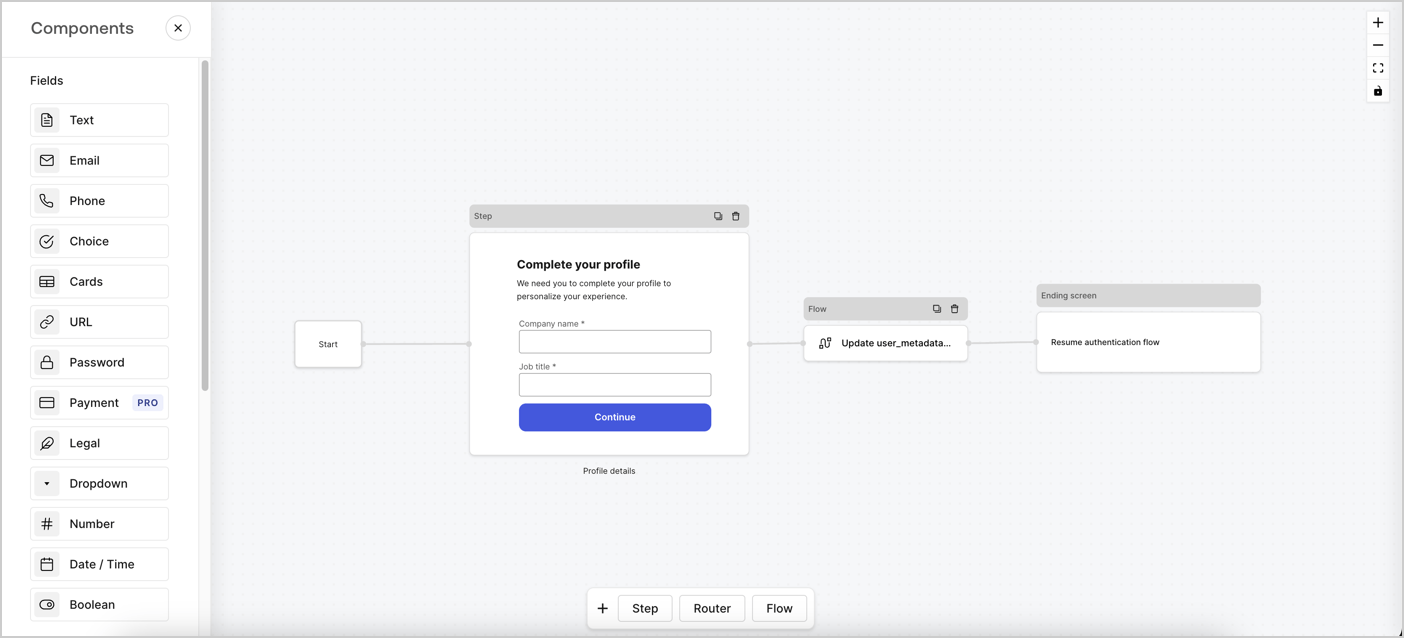
Forms for Actions allows you to create progressive profiling flows to decide when to prompt users to collect missing information, such as company name and job title, and store them as `user_metadata` attributes.
<Frame>
  <img src="https://mintcdn.com/docs-staging-update-explain-log-stream-pause/y76w6mbqO-j6Dxee/docs/images/cdy7uua7fh8z/xUx9YmnHvnAqL19JvNtNP/60dae88f893d4ebe8e3523421e960596/Progressive-profle-overview.png?fit=max&auto=format&n=y76w6mbqO-j6Dxee&q=85&s=73eb5620b3db5a2ea44df9a7a4ac1938" alt="Dashboard > Actions > Forms > Form" data-og-width="1404" width="1404" data-og-height="638" height="638" data-path="docs/images/cdy7uua7fh8z/xUx9YmnHvnAqL19JvNtNP/60dae88f893d4ebe8e3523421e960596/Progressive-profle-overview.png" data-optimize="true" data-opv="3" srcset="https://mintcdn.com/docs-staging-update-explain-log-stream-pause/y76w6mbqO-j6Dxee/docs/images/cdy7uua7fh8z/xUx9YmnHvnAqL19JvNtNP/60dae88f893d4ebe8e3523421e960596/Progressive-profle-overview.png?w=280&fit=max&auto=format&n=y76w6mbqO-j6Dxee&q=85&s=6b98a3bc63e2488080a59fc78d8f8b8e 280w, https://mintcdn.com/docs-staging-update-explain-log-stream-pause/y76w6mbqO-j6Dxee/docs/images/cdy7uua7fh8z/xUx9YmnHvnAqL19JvNtNP/60dae88f893d4ebe8e3523421e960596/Progressive-profle-overview.png?w=560&fit=max&auto=format&n=y76w6mbqO-j6Dxee&q=85&s=f6a98ef22c7578d5445f3b556a51367a 560w, https://mintcdn.com/docs-staging-update-explain-log-stream-pause/y76w6mbqO-j6Dxee/docs/images/cdy7uua7fh8z/xUx9YmnHvnAqL19JvNtNP/60dae88f893d4ebe8e3523421e960596/Progressive-profle-overview.png?w=840&fit=max&auto=format&n=y76w6mbqO-j6Dxee&q=85&s=0fa057078061c0f9390f21ec3ca1b8b3 840w, https://mintcdn.com/docs-staging-update-explain-log-stream-pause/y76w6mbqO-j6Dxee/docs/images/cdy7uua7fh8z/xUx9YmnHvnAqL19JvNtNP/60dae88f893d4ebe8e3523421e960596/Progressive-profle-overview.png?w=1100&fit=max&auto=format&n=y76w6mbqO-j6Dxee&q=85&s=c9bbda132dd0e428e026573806f92516 1100w, https://mintcdn.com/docs-staging-update-explain-log-stream-pause/y76w6mbqO-j6Dxee/docs/images/cdy7uua7fh8z/xUx9YmnHvnAqL19JvNtNP/60dae88f893d4ebe8e3523421e960596/Progressive-profle-overview.png?w=1650&fit=max&auto=format&n=y76w6mbqO-j6Dxee&q=85&s=a3ad176d8f4aa46cd04a164c12096705 1650w, https://mintcdn.com/docs-staging-update-explain-log-stream-pause/y76w6mbqO-j6Dxee/docs/images/cdy7uua7fh8z/xUx9YmnHvnAqL19JvNtNP/60dae88f893d4ebe8e3523421e960596/Progressive-profle-overview.png?w=2500&fit=max&auto=format&n=y76w6mbqO-j6Dxee&q=85&s=d7127e46ba25de05012131a0845b57af 2500w" />
</Frame>

The sections below outline how you can create a progressive profile form using nodes and flows, along with steps for adding your form to a [Post Login Action](/docs/customize/actions/explore-triggers/signup-and-login-triggers/login-trigger).

## Create a form from scratch

Follow these steps to create a form to gather information:

1. Open the Form editor by selecting **Auth0 Dashboard > Actions > Forms.**
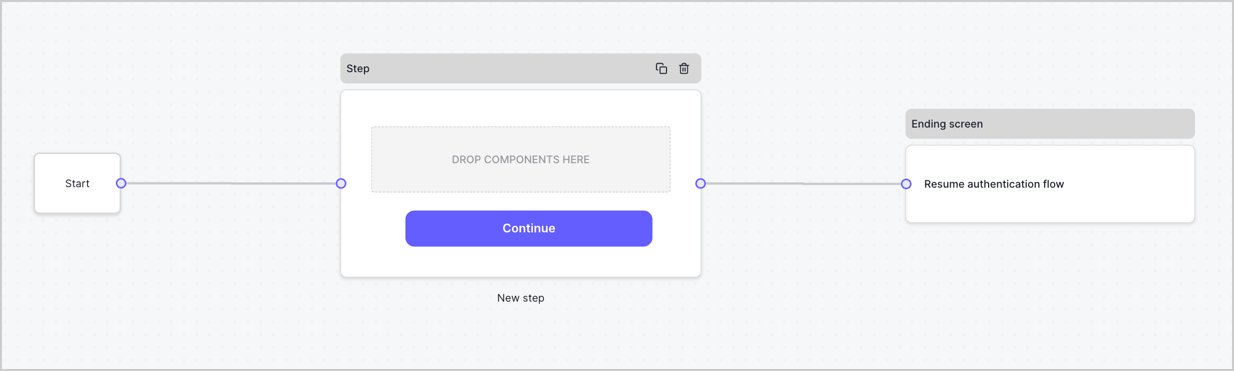
2. Select **Create Form** > **Start from scratch**.

By default, a new form contains a Start node, a Step node, and an Ending screen node.
<Frame>
  <img src="https://mintcdn.com/docs-staging-update-explain-log-stream-pause/yoUxSAVS_skCMN0Y/docs/images/cdy7uua7fh8z/2TZ9jSjgEcARFpULI6hz4R/a4319a1bd482f2ee5cc23100fdb2f42c/New-form-Forms-for-action-use-case.png?fit=max&auto=format&n=yoUxSAVS_skCMN0Y&q=85&s=fb48aa4272cef51a7280db11dde5301e" alt="Dashboard > Forms > Use Cases > Form" data-og-width="1234" width="1234" data-og-height="371" height="371" data-path="docs/images/cdy7uua7fh8z/2TZ9jSjgEcARFpULI6hz4R/a4319a1bd482f2ee5cc23100fdb2f42c/New-form-Forms-for-action-use-case.png" data-optimize="true" data-opv="3" srcset="https://mintcdn.com/docs-staging-update-explain-log-stream-pause/yoUxSAVS_skCMN0Y/docs/images/cdy7uua7fh8z/2TZ9jSjgEcARFpULI6hz4R/a4319a1bd482f2ee5cc23100fdb2f42c/New-form-Forms-for-action-use-case.png?w=280&fit=max&auto=format&n=yoUxSAVS_skCMN0Y&q=85&s=f963d348870e625213f07d29cb834b9e 280w, https://mintcdn.com/docs-staging-update-explain-log-stream-pause/yoUxSAVS_skCMN0Y/docs/images/cdy7uua7fh8z/2TZ9jSjgEcARFpULI6hz4R/a4319a1bd482f2ee5cc23100fdb2f42c/New-form-Forms-for-action-use-case.png?w=560&fit=max&auto=format&n=yoUxSAVS_skCMN0Y&q=85&s=502047d60cfb38f6aec09f9d28fe7c49 560w, https://mintcdn.com/docs-staging-update-explain-log-stream-pause/yoUxSAVS_skCMN0Y/docs/images/cdy7uua7fh8z/2TZ9jSjgEcARFpULI6hz4R/a4319a1bd482f2ee5cc23100fdb2f42c/New-form-Forms-for-action-use-case.png?w=840&fit=max&auto=format&n=yoUxSAVS_skCMN0Y&q=85&s=8dba51c9736bec21fa959f8e0db62b4b 840w, https://mintcdn.com/docs-staging-update-explain-log-stream-pause/yoUxSAVS_skCMN0Y/docs/images/cdy7uua7fh8z/2TZ9jSjgEcARFpULI6hz4R/a4319a1bd482f2ee5cc23100fdb2f42c/New-form-Forms-for-action-use-case.png?w=1100&fit=max&auto=format&n=yoUxSAVS_skCMN0Y&q=85&s=5c7e6f6adf2e7d68de1024fc2f94fc84 1100w, https://mintcdn.com/docs-staging-update-explain-log-stream-pause/yoUxSAVS_skCMN0Y/docs/images/cdy7uua7fh8z/2TZ9jSjgEcARFpULI6hz4R/a4319a1bd482f2ee5cc23100fdb2f42c/New-form-Forms-for-action-use-case.png?w=1650&fit=max&auto=format&n=yoUxSAVS_skCMN0Y&q=85&s=c8cc5f753db6e19afd093e3c314f413d 1650w, https://mintcdn.com/docs-staging-update-explain-log-stream-pause/yoUxSAVS_skCMN0Y/docs/images/cdy7uua7fh8z/2TZ9jSjgEcARFpULI6hz4R/a4319a1bd482f2ee5cc23100fdb2f42c/New-form-Forms-for-action-use-case.png?w=2500&fit=max&auto=format&n=yoUxSAVS_skCMN0Y&q=85&s=53c76bf0fb91433c09908e331774094f 2500w" />
</Frame>

### Configure the Step node

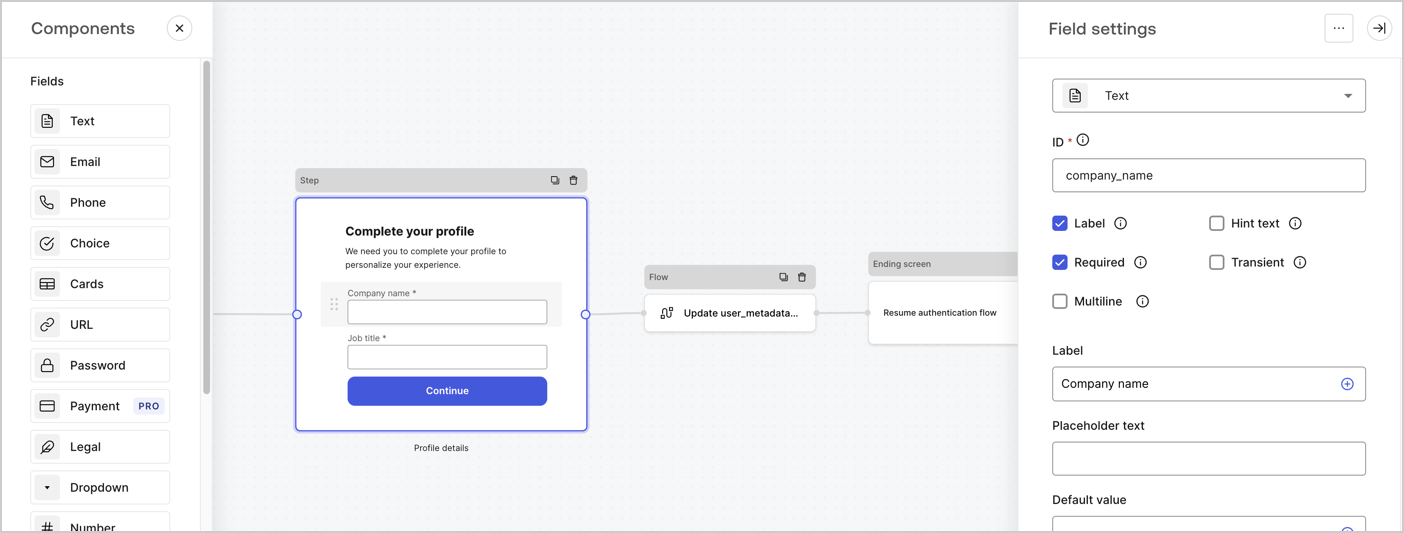
The Step node is the graphical interface visible to users. Add [Fields](/docs/customize/forms/nodes-and-components) to the Step node to collect the user's company name and job title values by following these steps:

1. Drag a **Rich text** field from the **Components menu** into the **Step** node.

   * **Rich text**: Enter a custom message.

     * **Example**: `Complete your profile! We need you to complete your profile to personalize your experience.`
   * Select **Save**.
2. Drag a **Text** field into the **Step** node.

   * **ID**: Enter `company_name`.
   * **Label**: Enable the checkbox.
   * **Label**: Enter `Company name`.
   * **Required**: Enable the checkbox.
   * Select **Save**.
3. Drag a **Text** field into the **Step** node.

   1. **ID**: Enter `job_title`.
   2. **Label**: Enter `Job title`.
   3. **Label**: Enable the checkbox.
   4. **Required**: Enable the checkbox.
   5. Select **Save**.
4. Select **Publish** to save.
<Frame>
  <img src="https://mintcdn.com/docs-staging-update-explain-log-stream-pause/1M7Pt8HFqIzsgFrg/docs/images/cdy7uua7fh8z/6H1lRzwKyYioQyQJ9MtIoM/aa248e92fc028a68a5b92ff361a11644/progressive-profile-step.png?fit=max&auto=format&n=1M7Pt8HFqIzsgFrg&q=85&s=3363c746b8734a69499b8fa6e0ed8c0d" alt="Dashboard > Actions > Forms > Form > Step node" data-og-width="1404" width="1404" data-og-height="533" height="533" data-path="docs/images/cdy7uua7fh8z/6H1lRzwKyYioQyQJ9MtIoM/aa248e92fc028a68a5b92ff361a11644/progressive-profile-step.png" data-optimize="true" data-opv="3" srcset="https://mintcdn.com/docs-staging-update-explain-log-stream-pause/1M7Pt8HFqIzsgFrg/docs/images/cdy7uua7fh8z/6H1lRzwKyYioQyQJ9MtIoM/aa248e92fc028a68a5b92ff361a11644/progressive-profile-step.png?w=280&fit=max&auto=format&n=1M7Pt8HFqIzsgFrg&q=85&s=5986cc1f59b6bb7b6de6c62fad307433 280w, https://mintcdn.com/docs-staging-update-explain-log-stream-pause/1M7Pt8HFqIzsgFrg/docs/images/cdy7uua7fh8z/6H1lRzwKyYioQyQJ9MtIoM/aa248e92fc028a68a5b92ff361a11644/progressive-profile-step.png?w=560&fit=max&auto=format&n=1M7Pt8HFqIzsgFrg&q=85&s=c29064ef1a97ed5fc1d1b57e4f8bdc0b 560w, https://mintcdn.com/docs-staging-update-explain-log-stream-pause/1M7Pt8HFqIzsgFrg/docs/images/cdy7uua7fh8z/6H1lRzwKyYioQyQJ9MtIoM/aa248e92fc028a68a5b92ff361a11644/progressive-profile-step.png?w=840&fit=max&auto=format&n=1M7Pt8HFqIzsgFrg&q=85&s=bbb937b6d73a114394560627c728be25 840w, https://mintcdn.com/docs-staging-update-explain-log-stream-pause/1M7Pt8HFqIzsgFrg/docs/images/cdy7uua7fh8z/6H1lRzwKyYioQyQJ9MtIoM/aa248e92fc028a68a5b92ff361a11644/progressive-profile-step.png?w=1100&fit=max&auto=format&n=1M7Pt8HFqIzsgFrg&q=85&s=168f395744569bcd5893b20cd16300d6 1100w, https://mintcdn.com/docs-staging-update-explain-log-stream-pause/1M7Pt8HFqIzsgFrg/docs/images/cdy7uua7fh8z/6H1lRzwKyYioQyQJ9MtIoM/aa248e92fc028a68a5b92ff361a11644/progressive-profile-step.png?w=1650&fit=max&auto=format&n=1M7Pt8HFqIzsgFrg&q=85&s=6d9a8425278f116bf7a17455ffe4eaa3 1650w, https://mintcdn.com/docs-staging-update-explain-log-stream-pause/1M7Pt8HFqIzsgFrg/docs/images/cdy7uua7fh8z/6H1lRzwKyYioQyQJ9MtIoM/aa248e92fc028a68a5b92ff361a11644/progressive-profile-step.png?w=2500&fit=max&auto=format&n=1M7Pt8HFqIzsgFrg&q=85&s=d9a1a0d2ceca71391a4b348c4bd0544f 2500w" />
</Frame>

### Configure the flow node

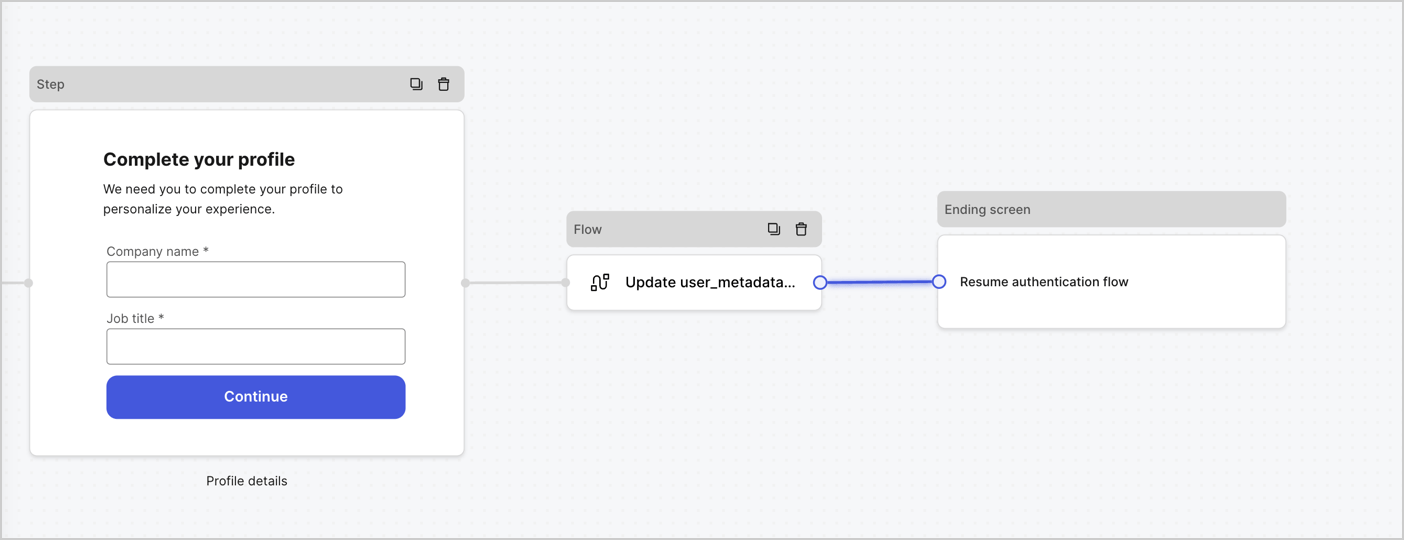
Add a **Flow** node after the **Step** node to update the `user_metadata` and resume the authentication flow by following these steps:

1. Select **Flow** from the bottom of the Form editor.
2. Remove the existing link between the **Step** and **Ending Screen** nodes.
3. Select the new **Flow** > **Click to add a flow** > **Create a new flow.**

   * Enter `Update user_metadata` in the **Name** field.
   * Select **Create**.
   * Select **Save**.
4. Link the **Flow** node to the **Step** and **Ending Screen** nodes as pictured below.
5. Select **Publish** to save.
<Frame>
  <img src="https://mintcdn.com/docs-staging-update-explain-log-stream-pause/txRm-7cpxDhJukaW/docs/images/cdy7uua7fh8z/5C91DaWn4LGtJT9BF87ssu/095171d0c452a287c44bfde12fd6d13f/link-nodes.png?fit=max&auto=format&n=txRm-7cpxDhJukaW&q=85&s=9663f8baffe4dc8530e34f03ecc68b5d" alt="Dashboard > Actions > Forms > Form" data-og-width="1404" width="1404" data-og-height="540" height="540" data-path="docs/images/cdy7uua7fh8z/5C91DaWn4LGtJT9BF87ssu/095171d0c452a287c44bfde12fd6d13f/link-nodes.png" data-optimize="true" data-opv="3" srcset="https://mintcdn.com/docs-staging-update-explain-log-stream-pause/txRm-7cpxDhJukaW/docs/images/cdy7uua7fh8z/5C91DaWn4LGtJT9BF87ssu/095171d0c452a287c44bfde12fd6d13f/link-nodes.png?w=280&fit=max&auto=format&n=txRm-7cpxDhJukaW&q=85&s=9a433cd32cb3a88386d2de494bfebe71 280w, https://mintcdn.com/docs-staging-update-explain-log-stream-pause/txRm-7cpxDhJukaW/docs/images/cdy7uua7fh8z/5C91DaWn4LGtJT9BF87ssu/095171d0c452a287c44bfde12fd6d13f/link-nodes.png?w=560&fit=max&auto=format&n=txRm-7cpxDhJukaW&q=85&s=e29ecb2881873ae1798c427cd1854769 560w, https://mintcdn.com/docs-staging-update-explain-log-stream-pause/txRm-7cpxDhJukaW/docs/images/cdy7uua7fh8z/5C91DaWn4LGtJT9BF87ssu/095171d0c452a287c44bfde12fd6d13f/link-nodes.png?w=840&fit=max&auto=format&n=txRm-7cpxDhJukaW&q=85&s=12b574401266a9f151145bb778387ade 840w, https://mintcdn.com/docs-staging-update-explain-log-stream-pause/txRm-7cpxDhJukaW/docs/images/cdy7uua7fh8z/5C91DaWn4LGtJT9BF87ssu/095171d0c452a287c44bfde12fd6d13f/link-nodes.png?w=1100&fit=max&auto=format&n=txRm-7cpxDhJukaW&q=85&s=563fbd92cfd72b70e38c5a642c0987ac 1100w, https://mintcdn.com/docs-staging-update-explain-log-stream-pause/txRm-7cpxDhJukaW/docs/images/cdy7uua7fh8z/5C91DaWn4LGtJT9BF87ssu/095171d0c452a287c44bfde12fd6d13f/link-nodes.png?w=1650&fit=max&auto=format&n=txRm-7cpxDhJukaW&q=85&s=5ac3516dbf627e2797c7ac8422100e3d 1650w, https://mintcdn.com/docs-staging-update-explain-log-stream-pause/txRm-7cpxDhJukaW/docs/images/cdy7uua7fh8z/5C91DaWn4LGtJT9BF87ssu/095171d0c452a287c44bfde12fd6d13f/link-nodes.png?w=2500&fit=max&auto=format&n=txRm-7cpxDhJukaW&q=85&s=8e2f7bc155d45848da3e09cdeda270a3 2500w" />
</Frame>

Add an Auth0 Update user action to the flow by following these steps:

1. Select the **Update user\_metadata** flow, then select the **Edit Flow** to open the Flow editor in a new tab.
2. Below the **Start** action, select the **+** icon to add an **Update user** action. Complete the fields below, then select **Save** to continue.

   * **Connection**: Select from the dropdown the Vault connection to your M2M application.

   * **User ID**: Enter `{{context.user.user_id}}`.

   * **Body**: Copy and paste the following code to update the user\_metadata with `job_title` and `company_name` properties.

     ```json lines theme={null}
     {
        "user_metadata": {
           "job_title": "{{fields.job_title}}",
           "company_name": "{{fields.company_name}}"
        }
     }
     ```

   * Select **Save**.
3. Select **Publish** to save.

<Frame>
  <img src="https://mintcdn.com/docs-staging-update-explain-log-stream-pause/xi37ExP8uI8gLilW/docs/images/cdy7uua7fh8z/65Jx4W5oIZJyyvA8z4HqIx/0661b1a8ca6361c54fc4fef07ba59f0b/update-user.png?fit=max&auto=format&n=xi37ExP8uI8gLilW&q=85&s=7044a953f2f48a47bd2e8a6efaa36547" alt="Dashboard > Actions > Forms > Flows" data-og-width="1404" width="1404" data-og-height="244" height="244" data-path="docs/images/cdy7uua7fh8z/65Jx4W5oIZJyyvA8z4HqIx/0661b1a8ca6361c54fc4fef07ba59f0b/update-user.png" data-optimize="true" data-opv="3" srcset="https://mintcdn.com/docs-staging-update-explain-log-stream-pause/xi37ExP8uI8gLilW/docs/images/cdy7uua7fh8z/65Jx4W5oIZJyyvA8z4HqIx/0661b1a8ca6361c54fc4fef07ba59f0b/update-user.png?w=280&fit=max&auto=format&n=xi37ExP8uI8gLilW&q=85&s=42b2f449d09f8cbed9e62aedb25fa9da 280w, https://mintcdn.com/docs-staging-update-explain-log-stream-pause/xi37ExP8uI8gLilW/docs/images/cdy7uua7fh8z/65Jx4W5oIZJyyvA8z4HqIx/0661b1a8ca6361c54fc4fef07ba59f0b/update-user.png?w=560&fit=max&auto=format&n=xi37ExP8uI8gLilW&q=85&s=af06904f590b34725d5ede181c760a29 560w, https://mintcdn.com/docs-staging-update-explain-log-stream-pause/xi37ExP8uI8gLilW/docs/images/cdy7uua7fh8z/65Jx4W5oIZJyyvA8z4HqIx/0661b1a8ca6361c54fc4fef07ba59f0b/update-user.png?w=840&fit=max&auto=format&n=xi37ExP8uI8gLilW&q=85&s=f7b343f421e02b22f20d5083cc424368 840w, https://mintcdn.com/docs-staging-update-explain-log-stream-pause/xi37ExP8uI8gLilW/docs/images/cdy7uua7fh8z/65Jx4W5oIZJyyvA8z4HqIx/0661b1a8ca6361c54fc4fef07ba59f0b/update-user.png?w=1100&fit=max&auto=format&n=xi37ExP8uI8gLilW&q=85&s=bf91c78239409615dc47ec70fc614881 1100w, https://mintcdn.com/docs-staging-update-explain-log-stream-pause/xi37ExP8uI8gLilW/docs/images/cdy7uua7fh8z/65Jx4W5oIZJyyvA8z4HqIx/0661b1a8ca6361c54fc4fef07ba59f0b/update-user.png?w=1650&fit=max&auto=format&n=xi37ExP8uI8gLilW&q=85&s=f7de99cf36260593a314c3402140dfa1 1650w, https://mintcdn.com/docs-staging-update-explain-log-stream-pause/xi37ExP8uI8gLilW/docs/images/cdy7uua7fh8z/65Jx4W5oIZJyyvA8z4HqIx/0661b1a8ca6361c54fc4fef07ba59f0b/update-user.png?w=2500&fit=max&auto=format&n=xi37ExP8uI8gLilW&q=85&s=f6a7fef2de2adb98642cbaf558e73891 2500w" />
</Frame>

### Retrieve the form render code

Retrieve the form render code to visually render the form with a custom Post Login Action by following these steps:

* From the Form editor, select **`<> Render`**.
* Select **Copy**.
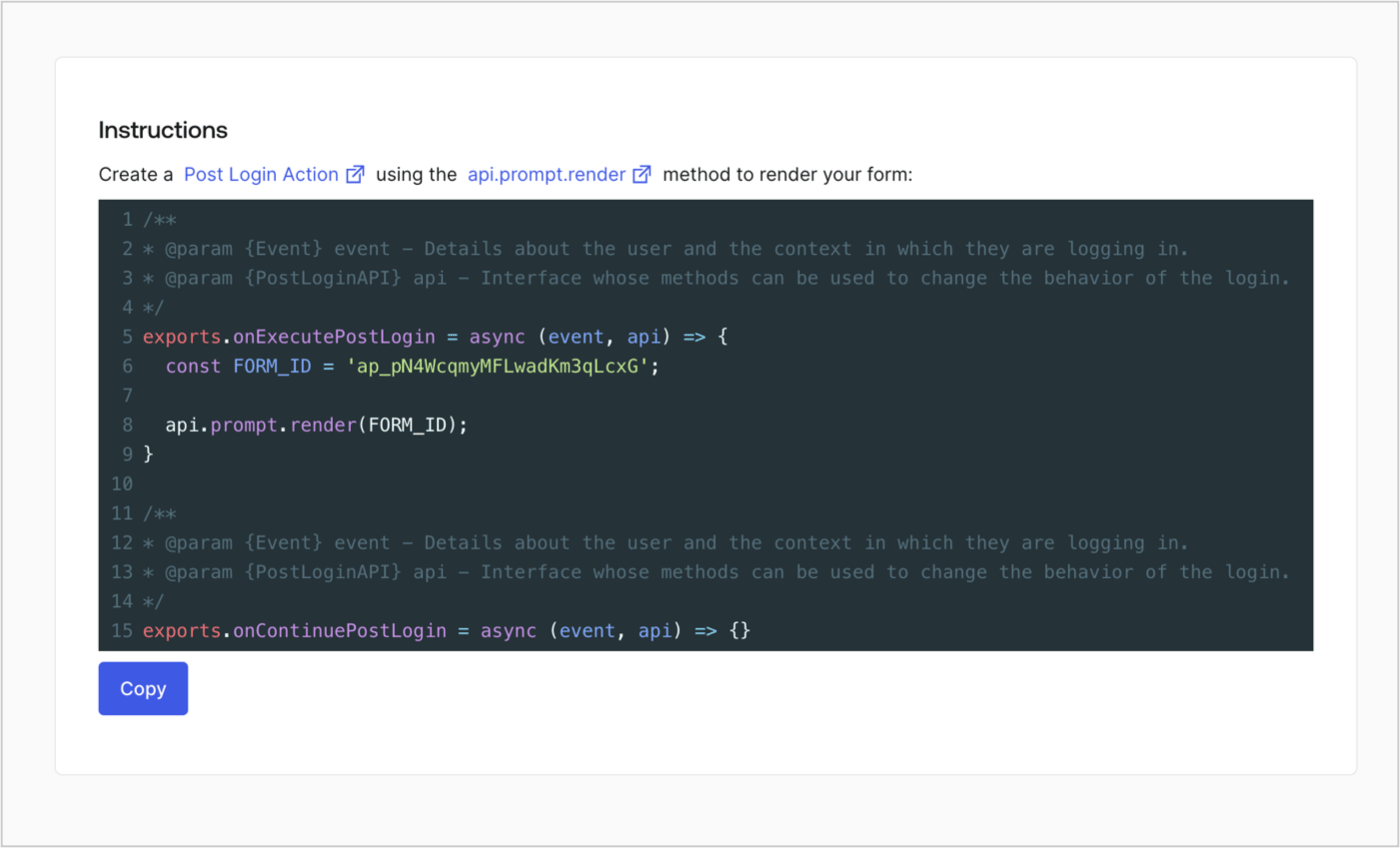
<Frame>
  <img src="https://mintcdn.com/docs-staging-update-explain-log-stream-pause/1kA3Fz-Yr67oeIRa/docs/images/cdy7uua7fh8z/2EIUzc539sq9lwoTKbjoJv/496a864c0fc44a782c9cadca119dbfb0/embed.png?fit=max&auto=format&n=1kA3Fz-Yr67oeIRa&q=85&s=6787df4906f3234c0911be64d54fd2e3" alt="Dashboard > Actions > Forms > Form > Embed" data-og-width="1400" width="1400" data-og-height="848" height="848" data-path="docs/images/cdy7uua7fh8z/2EIUzc539sq9lwoTKbjoJv/496a864c0fc44a782c9cadca119dbfb0/embed.png" data-optimize="true" data-opv="3" srcset="https://mintcdn.com/docs-staging-update-explain-log-stream-pause/1kA3Fz-Yr67oeIRa/docs/images/cdy7uua7fh8z/2EIUzc539sq9lwoTKbjoJv/496a864c0fc44a782c9cadca119dbfb0/embed.png?w=280&fit=max&auto=format&n=1kA3Fz-Yr67oeIRa&q=85&s=6ea0aa4bdb20cca42a3b692f214b38af 280w, https://mintcdn.com/docs-staging-update-explain-log-stream-pause/1kA3Fz-Yr67oeIRa/docs/images/cdy7uua7fh8z/2EIUzc539sq9lwoTKbjoJv/496a864c0fc44a782c9cadca119dbfb0/embed.png?w=560&fit=max&auto=format&n=1kA3Fz-Yr67oeIRa&q=85&s=c295cc15d367bec6a333327e2a0261bf 560w, https://mintcdn.com/docs-staging-update-explain-log-stream-pause/1kA3Fz-Yr67oeIRa/docs/images/cdy7uua7fh8z/2EIUzc539sq9lwoTKbjoJv/496a864c0fc44a782c9cadca119dbfb0/embed.png?w=840&fit=max&auto=format&n=1kA3Fz-Yr67oeIRa&q=85&s=34a4227fa835495cf260896d4a642955 840w, https://mintcdn.com/docs-staging-update-explain-log-stream-pause/1kA3Fz-Yr67oeIRa/docs/images/cdy7uua7fh8z/2EIUzc539sq9lwoTKbjoJv/496a864c0fc44a782c9cadca119dbfb0/embed.png?w=1100&fit=max&auto=format&n=1kA3Fz-Yr67oeIRa&q=85&s=1bb983773af1b1bd09e3cd560e806bc8 1100w, https://mintcdn.com/docs-staging-update-explain-log-stream-pause/1kA3Fz-Yr67oeIRa/docs/images/cdy7uua7fh8z/2EIUzc539sq9lwoTKbjoJv/496a864c0fc44a782c9cadca119dbfb0/embed.png?w=1650&fit=max&auto=format&n=1kA3Fz-Yr67oeIRa&q=85&s=0529a6a061d27a1d42fee8f8d2d3f002 1650w, https://mintcdn.com/docs-staging-update-explain-log-stream-pause/1kA3Fz-Yr67oeIRa/docs/images/cdy7uua7fh8z/2EIUzc539sq9lwoTKbjoJv/496a864c0fc44a782c9cadca119dbfb0/embed.png?w=2500&fit=max&auto=format&n=1kA3Fz-Yr67oeIRa&q=85&s=9aac9d6ddc8aaffa597e9e0aa1ff9207 2500w" />
</Frame>

## Create a Post Login Action

Create a post-login Action to render your form by following these steps:

1. Navigate to **Auth0 Dashboard > Actions > Flows > Login.**
2. Select the **+** icon and select **Build from scratch**:

   * **Name**: Enter `Render Progressive Profile Form`.
   * **Trigger**: Select `Login / Post Login`.
   * **Runtime**: Select the recommended version.
3. Select **Create**.

To configure the post-login Action:

1. Delete the existing code from the Code editor.
2. Paste the form embed code into the Code editor.
3. Edit the code to define the conditional logic that will render the form.

   ```javascript lines theme={null}
   /**
   * @param {Event} event - Details about the user and the context in which they are logging in.
   * @param {PostLoginAPI} api - Interface whose methods can be used to change the behavior of the login.
   */
   exports.onExecutePostLogin = async (event, api) => {
     const FORM_ID = 'REPLACE_WITH_YOUR_FORM_ID';

     if (
       event.stats.logins_count > 2 &&
       !event.user.user_metadata.company_name &&
       !event.user.user_metadata.job_title
     ) {
       api.prompt.render(FORM_ID);
     }
   }

   exports.onContinuePostLogin = async (event, api) => { }
   ```

   <Callout icon="file-lines" color="#0EA5E9" iconType="regular">
     The example code above will render the form when a user has a login count > 2 and is missing the user metadata company\_name and job\_title properties.
   </Callout>
4. Select **Deploy.**
5. Drag and Drop the **Render Progressive Profile Form** Action to the **Login** flow.
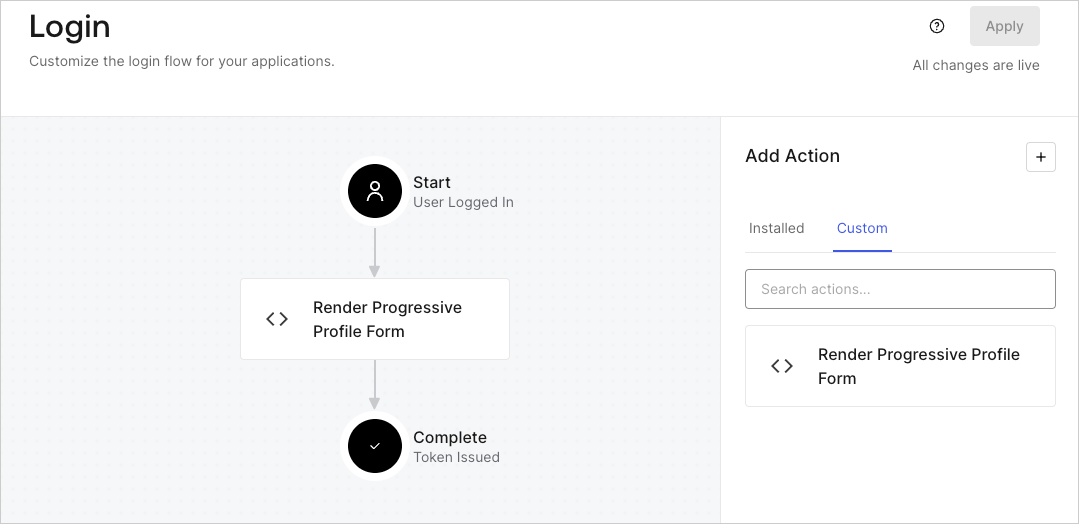
   <Frame>
     <img src="https://mintcdn.com/docs-staging-update-explain-log-stream-pause/zDtP5hOa3cg0wUwD/docs/images/cdy7uua7fh8z/1QjjZdpTqTxx012UDN4xk9/99fba5ef4068a5688f1762eea7f42976/renderprogessiveprofile.png?fit=max&auto=format&n=zDtP5hOa3cg0wUwD&q=85&s=3ead71d8795cfde801ef767f4bf58e76" alt="Dashboard > Forms > Use Cases Progressive Profile Login Action" data-og-width="1079" width="1079" data-og-height="524" height="524" data-path="docs/images/cdy7uua7fh8z/1QjjZdpTqTxx012UDN4xk9/99fba5ef4068a5688f1762eea7f42976/renderprogessiveprofile.png" data-optimize="true" data-opv="3" srcset="https://mintcdn.com/docs-staging-update-explain-log-stream-pause/zDtP5hOa3cg0wUwD/docs/images/cdy7uua7fh8z/1QjjZdpTqTxx012UDN4xk9/99fba5ef4068a5688f1762eea7f42976/renderprogessiveprofile.png?w=280&fit=max&auto=format&n=zDtP5hOa3cg0wUwD&q=85&s=376aaf064d280a51dc51aabe47b83dd3 280w, https://mintcdn.com/docs-staging-update-explain-log-stream-pause/zDtP5hOa3cg0wUwD/docs/images/cdy7uua7fh8z/1QjjZdpTqTxx012UDN4xk9/99fba5ef4068a5688f1762eea7f42976/renderprogessiveprofile.png?w=560&fit=max&auto=format&n=zDtP5hOa3cg0wUwD&q=85&s=0dc65007e5269184ac00f1188325a08d 560w, https://mintcdn.com/docs-staging-update-explain-log-stream-pause/zDtP5hOa3cg0wUwD/docs/images/cdy7uua7fh8z/1QjjZdpTqTxx012UDN4xk9/99fba5ef4068a5688f1762eea7f42976/renderprogessiveprofile.png?w=840&fit=max&auto=format&n=zDtP5hOa3cg0wUwD&q=85&s=230eb9d4d1df57b9a080f352e27d2748 840w, https://mintcdn.com/docs-staging-update-explain-log-stream-pause/zDtP5hOa3cg0wUwD/docs/images/cdy7uua7fh8z/1QjjZdpTqTxx012UDN4xk9/99fba5ef4068a5688f1762eea7f42976/renderprogessiveprofile.png?w=1100&fit=max&auto=format&n=zDtP5hOa3cg0wUwD&q=85&s=f278f054b53586dcbd2e2b7063dca4cc 1100w, https://mintcdn.com/docs-staging-update-explain-log-stream-pause/zDtP5hOa3cg0wUwD/docs/images/cdy7uua7fh8z/1QjjZdpTqTxx012UDN4xk9/99fba5ef4068a5688f1762eea7f42976/renderprogessiveprofile.png?w=1650&fit=max&auto=format&n=zDtP5hOa3cg0wUwD&q=85&s=8e5f763d13f2133f9404807cc4aaaa35 1650w, https://mintcdn.com/docs-staging-update-explain-log-stream-pause/zDtP5hOa3cg0wUwD/docs/images/cdy7uua7fh8z/1QjjZdpTqTxx012UDN4xk9/99fba5ef4068a5688f1762eea7f42976/renderprogessiveprofile.png?w=2500&fit=max&auto=format&n=zDtP5hOa3cg0wUwD&q=85&s=e51e489875a07a8518a24a50f61841cf 2500w" />
   </Frame>
6. Select **Apply**.

### Test implementation

Test the implementation by following these steps:

1. Log in with an existing user whose login count is greater than 2 and their `user_metadata` attributes `company_name` and `job_title` have no values.
2. The post-login action in the Login flow will render the form and prompt for the information.
3. Select **Auth0 Dashboard > User Management > Users,** locate the user and verify that the `user_metadata` attributes `company_name` and `job_title` contain information.
