> ## Documentation Index
> Fetch the complete documentation index at: https://docs-staging-update-explain-log-stream-pause.mintlify.site/llms.txt
> Use this file to discover all available pages before exploring further.

# Vault

> ActionsでVaultのフォームを使用する方法について説明します。

Vaultでは、シークレットや共通の設定（例：APIキー、アクセストークン、リフレッシュトークンなど）を安全に保存し、Vault接続として外部サービスや統合を使用した要求を認証できます。

<Callout icon="file-lines" color="#0EA5E9" iconType="regular">
  * 接続の中には、ユーザーに対して資格情報の提供を求めるものがあります（たとえば、Auth0でマシンツーマシン（M2M）アプリケーションを使う場合は、使用期限とリフレッシュトークンのあるアクセストークンを生成します）。接続は、両方のトークンを保管し、期限が切れる前に新しいアクセストークンを生成します。
  * 外部サービスによっては、API資格情報の生成にスコープの認可が必要です。スコープを変更した場合は、接続で問題が発生しないように、それらのサービスへの接続を更新してください。
  * 追加した接続は、すぐにフローで使用できます。既存の接続に対する更新は、自動的に反映されます。
</Callout>

## Vault接続を作成および変更する

アクションに資格情報が必要な場合、VaultページまたはフローエディターからVaultへの接続を作成・変更します。

### VaultページからVault接続を作成する

以下の手順に従って、VaultページからVault接続を追加します。

1. **［Auth0 Dashboard］>［Actions（アクション）］>［Forms（フォーム）］** の順に選択して、フォームエディターを開きます。

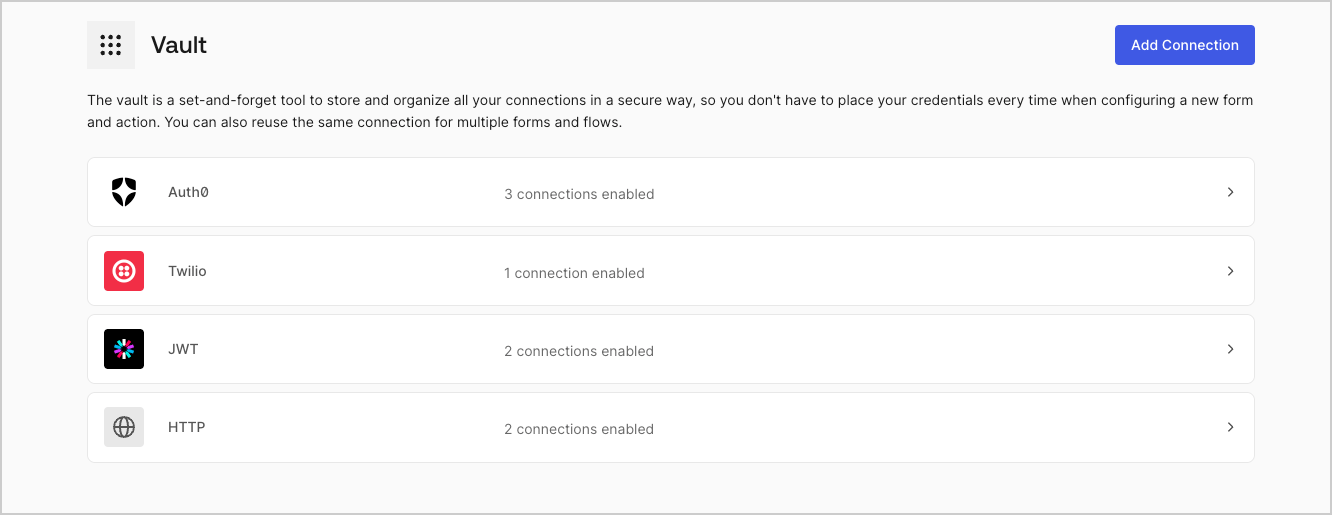
2. 左上隅の **{tenantName} >* \*\*\* ［Vault］*\* をクリックして、Vaultページを開きます。

   <Frame>
     <img src="https://mintcdn.com/docs-staging-update-explain-log-stream-pause/yonQHu0CmheOawQ3/docs/images/ja-jp/cdy7uua7fh8z/1sPNPKO6nuEDCuiYGRWSur/d85dc616170eaf2d7d5f321750863ccf/vault-connections-example.png?fit=max&auto=format&n=yonQHu0CmheOawQ3&q=85&s=beb8bae6eb58a84a2316743589cb533c" alt="Dashboard > Forms > Vault" data-og-width="1332" width="1332" data-og-height="515" height="515" data-path="docs/images/ja-jp/cdy7uua7fh8z/1sPNPKO6nuEDCuiYGRWSur/d85dc616170eaf2d7d5f321750863ccf/vault-connections-example.png" data-optimize="true" data-opv="3" srcset="https://mintcdn.com/docs-staging-update-explain-log-stream-pause/yonQHu0CmheOawQ3/docs/images/ja-jp/cdy7uua7fh8z/1sPNPKO6nuEDCuiYGRWSur/d85dc616170eaf2d7d5f321750863ccf/vault-connections-example.png?w=280&fit=max&auto=format&n=yonQHu0CmheOawQ3&q=85&s=cb951a9536e1fecbd620faf9b5b32325 280w, https://mintcdn.com/docs-staging-update-explain-log-stream-pause/yonQHu0CmheOawQ3/docs/images/ja-jp/cdy7uua7fh8z/1sPNPKO6nuEDCuiYGRWSur/d85dc616170eaf2d7d5f321750863ccf/vault-connections-example.png?w=560&fit=max&auto=format&n=yonQHu0CmheOawQ3&q=85&s=41acadfce3e3d81081ad8913211de205 560w, https://mintcdn.com/docs-staging-update-explain-log-stream-pause/yonQHu0CmheOawQ3/docs/images/ja-jp/cdy7uua7fh8z/1sPNPKO6nuEDCuiYGRWSur/d85dc616170eaf2d7d5f321750863ccf/vault-connections-example.png?w=840&fit=max&auto=format&n=yonQHu0CmheOawQ3&q=85&s=c818b1d17d86ca664c678539fa1c23b8 840w, https://mintcdn.com/docs-staging-update-explain-log-stream-pause/yonQHu0CmheOawQ3/docs/images/ja-jp/cdy7uua7fh8z/1sPNPKO6nuEDCuiYGRWSur/d85dc616170eaf2d7d5f321750863ccf/vault-connections-example.png?w=1100&fit=max&auto=format&n=yonQHu0CmheOawQ3&q=85&s=f55c369ab9942148007043ab5f3de419 1100w, https://mintcdn.com/docs-staging-update-explain-log-stream-pause/yonQHu0CmheOawQ3/docs/images/ja-jp/cdy7uua7fh8z/1sPNPKO6nuEDCuiYGRWSur/d85dc616170eaf2d7d5f321750863ccf/vault-connections-example.png?w=1650&fit=max&auto=format&n=yonQHu0CmheOawQ3&q=85&s=3d7868baccfb8bb26ab9c555c39728df 1650w, https://mintcdn.com/docs-staging-update-explain-log-stream-pause/yonQHu0CmheOawQ3/docs/images/ja-jp/cdy7uua7fh8z/1sPNPKO6nuEDCuiYGRWSur/d85dc616170eaf2d7d5f321750863ccf/vault-connections-example.png?w=2500&fit=max&auto=format&n=yonQHu0CmheOawQ3&q=85&s=9f215dd02e8933b5f8586828e33692d1 2500w" />
   </Frame>

3. **［Add Vault Connection（Vault接続を追加）］** を選択します。

4. 必要なアクションを選択し、 **［Continue（続行）］** をクリックします。

5. Vaultの **［Connection name（接続名）］** を追加し、 **［Continue（続行）］** を選択します。

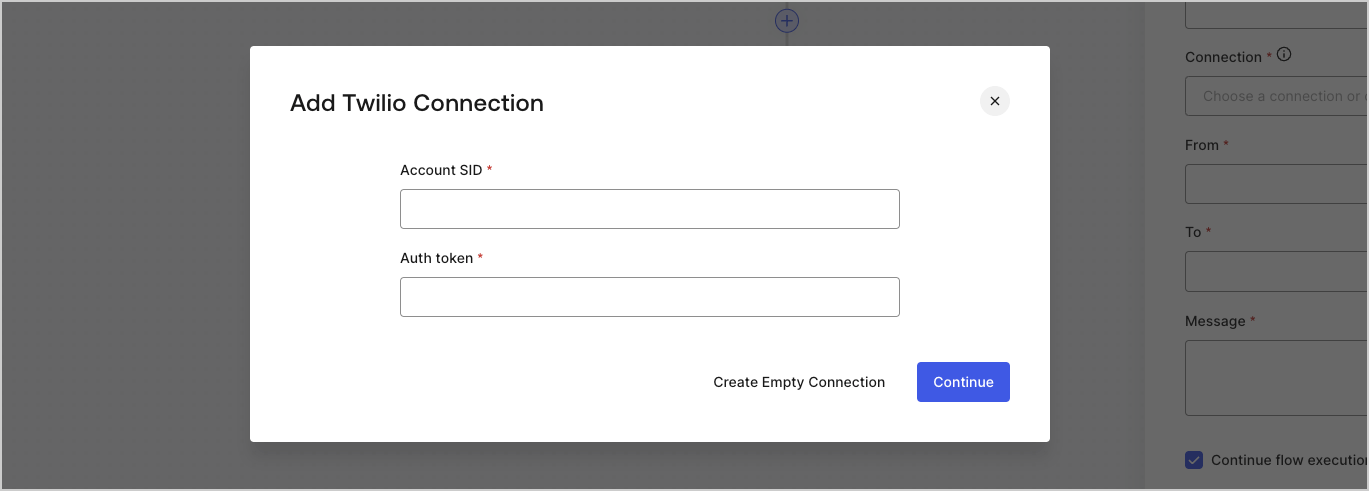
6. 資格情報を入力します。特定の資格情報がない場合は、 **［Create an empty connection（空の接続を作成）］** を選択し、後で資格情報を追加することもできます。空の接続には、資格情報が不足していることを示すオレンジ色のアイコンが表示されます。
7. **［Add Vault Connection（Vault接続を追加）］** を選択します。

### フローエディターからVault接続を作成する

フローアクションから、たとえばTwilioのようなVault接続を追加するには、以下の手順を実行します。

1. **［Auth0 Dashboard］>［Actions（アクション）］>［Forms（フォーム）］>［Flows（フロー）］** の順に選択して、フローエディターを開きます。

2. フローを選択し、 **［Send SMS with Twillo（TwilloでSMSを送信］** アクションを追加します。

3. アクションの **［Vault connection（Vault接続）］** 設定で、 **+** アイコンを選択します。

   <Frame>
     <img src="https://mintcdn.com/docs-staging-update-explain-log-stream-pause/3hzQN8NvHhYxTEfi/docs/images/ja-jp/cdy7uua7fh8z/1AsaznhRKxm5LZxPlcbfUw/10e5a8af700aab909f5b03fcd266da7e/twilio-vault-connection.png?fit=max&auto=format&n=3hzQN8NvHhYxTEfi&q=85&s=23aa40df10de77adfc0d528ffc6e6dbc" alt="Dashboard > Forms > Vault " data-og-width="1104" width="1104" data-og-height="191" height="191" data-path="docs/images/ja-jp/cdy7uua7fh8z/1AsaznhRKxm5LZxPlcbfUw/10e5a8af700aab909f5b03fcd266da7e/twilio-vault-connection.png" data-optimize="true" data-opv="3" srcset="https://mintcdn.com/docs-staging-update-explain-log-stream-pause/3hzQN8NvHhYxTEfi/docs/images/ja-jp/cdy7uua7fh8z/1AsaznhRKxm5LZxPlcbfUw/10e5a8af700aab909f5b03fcd266da7e/twilio-vault-connection.png?w=280&fit=max&auto=format&n=3hzQN8NvHhYxTEfi&q=85&s=cb5f81fb428175c20c2ae33dd85b5051 280w, https://mintcdn.com/docs-staging-update-explain-log-stream-pause/3hzQN8NvHhYxTEfi/docs/images/ja-jp/cdy7uua7fh8z/1AsaznhRKxm5LZxPlcbfUw/10e5a8af700aab909f5b03fcd266da7e/twilio-vault-connection.png?w=560&fit=max&auto=format&n=3hzQN8NvHhYxTEfi&q=85&s=d7604ffa7f0d3f78590427c50add1724 560w, https://mintcdn.com/docs-staging-update-explain-log-stream-pause/3hzQN8NvHhYxTEfi/docs/images/ja-jp/cdy7uua7fh8z/1AsaznhRKxm5LZxPlcbfUw/10e5a8af700aab909f5b03fcd266da7e/twilio-vault-connection.png?w=840&fit=max&auto=format&n=3hzQN8NvHhYxTEfi&q=85&s=15883f4ed0147daf57c10c4fa9bfc229 840w, https://mintcdn.com/docs-staging-update-explain-log-stream-pause/3hzQN8NvHhYxTEfi/docs/images/ja-jp/cdy7uua7fh8z/1AsaznhRKxm5LZxPlcbfUw/10e5a8af700aab909f5b03fcd266da7e/twilio-vault-connection.png?w=1100&fit=max&auto=format&n=3hzQN8NvHhYxTEfi&q=85&s=4549c9b225e062fcd15ed6ea460a00ac 1100w, https://mintcdn.com/docs-staging-update-explain-log-stream-pause/3hzQN8NvHhYxTEfi/docs/images/ja-jp/cdy7uua7fh8z/1AsaznhRKxm5LZxPlcbfUw/10e5a8af700aab909f5b03fcd266da7e/twilio-vault-connection.png?w=1650&fit=max&auto=format&n=3hzQN8NvHhYxTEfi&q=85&s=2bf9438d9c7e470768716d5d354a9aa9 1650w, https://mintcdn.com/docs-staging-update-explain-log-stream-pause/3hzQN8NvHhYxTEfi/docs/images/ja-jp/cdy7uua7fh8z/1AsaznhRKxm5LZxPlcbfUw/10e5a8af700aab909f5b03fcd266da7e/twilio-vault-connection.png?w=2500&fit=max&auto=format&n=3hzQN8NvHhYxTEfi&q=85&s=42a4830e12826dbff3146e55a21eb543 2500w" />
   </Frame>

4. Vaultの **［Connection name（接続名）］** を追加し、 **［Continue（続行）］** を選択します。

5. 資格情報を入力します。特定の資格情報がない場合は、 **［Create an empty connection（空の接続を作成）］** を選択し、後で資格情報を追加することもできます。空の接続には、資格情報が不足していることを示すオレンジ色のアイコンが表示されます。

   <Frame>
     <img src="https://mintcdn.com/docs-staging-update-explain-log-stream-pause/deAahB6i3RtAIA-R/docs/images/ja-jp/cdy7uua7fh8z/yobXanutPRCO3FWek8cOk/bc29e39fb8593cff35e2738234bfe6fe/twilio-vault-settings.png?fit=max&auto=format&n=deAahB6i3RtAIA-R&q=85&s=2c2b4653dc40e7dfddff6328db23b796" alt="Dashboard > Forms > Vault > Twilio connection settings" data-og-width="1369" width="1369" data-og-height="491" height="491" data-path="docs/images/ja-jp/cdy7uua7fh8z/yobXanutPRCO3FWek8cOk/bc29e39fb8593cff35e2738234bfe6fe/twilio-vault-settings.png" data-optimize="true" data-opv="3" srcset="https://mintcdn.com/docs-staging-update-explain-log-stream-pause/deAahB6i3RtAIA-R/docs/images/ja-jp/cdy7uua7fh8z/yobXanutPRCO3FWek8cOk/bc29e39fb8593cff35e2738234bfe6fe/twilio-vault-settings.png?w=280&fit=max&auto=format&n=deAahB6i3RtAIA-R&q=85&s=f5382c3005968640d1cba84a55c531d5 280w, https://mintcdn.com/docs-staging-update-explain-log-stream-pause/deAahB6i3RtAIA-R/docs/images/ja-jp/cdy7uua7fh8z/yobXanutPRCO3FWek8cOk/bc29e39fb8593cff35e2738234bfe6fe/twilio-vault-settings.png?w=560&fit=max&auto=format&n=deAahB6i3RtAIA-R&q=85&s=7b65c77e2bd6b2362821b9c78a8298d8 560w, https://mintcdn.com/docs-staging-update-explain-log-stream-pause/deAahB6i3RtAIA-R/docs/images/ja-jp/cdy7uua7fh8z/yobXanutPRCO3FWek8cOk/bc29e39fb8593cff35e2738234bfe6fe/twilio-vault-settings.png?w=840&fit=max&auto=format&n=deAahB6i3RtAIA-R&q=85&s=b7334479c305085d3610b9097815d93d 840w, https://mintcdn.com/docs-staging-update-explain-log-stream-pause/deAahB6i3RtAIA-R/docs/images/ja-jp/cdy7uua7fh8z/yobXanutPRCO3FWek8cOk/bc29e39fb8593cff35e2738234bfe6fe/twilio-vault-settings.png?w=1100&fit=max&auto=format&n=deAahB6i3RtAIA-R&q=85&s=9d30efd53e56bdaf7195d394e98252e3 1100w, https://mintcdn.com/docs-staging-update-explain-log-stream-pause/deAahB6i3RtAIA-R/docs/images/ja-jp/cdy7uua7fh8z/yobXanutPRCO3FWek8cOk/bc29e39fb8593cff35e2738234bfe6fe/twilio-vault-settings.png?w=1650&fit=max&auto=format&n=deAahB6i3RtAIA-R&q=85&s=583d36dee0eda92678310e035c366db4 1650w, https://mintcdn.com/docs-staging-update-explain-log-stream-pause/deAahB6i3RtAIA-R/docs/images/ja-jp/cdy7uua7fh8z/yobXanutPRCO3FWek8cOk/bc29e39fb8593cff35e2738234bfe6fe/twilio-vault-settings.png?w=2500&fit=max&auto=format&n=deAahB6i3RtAIA-R&q=85&s=43bf2d06cef95e77131c162606a325f1 2500w" />
   </Frame>

6. **［Add Vault Connection（Vault接続を追加）］** を選択します。